미리보기
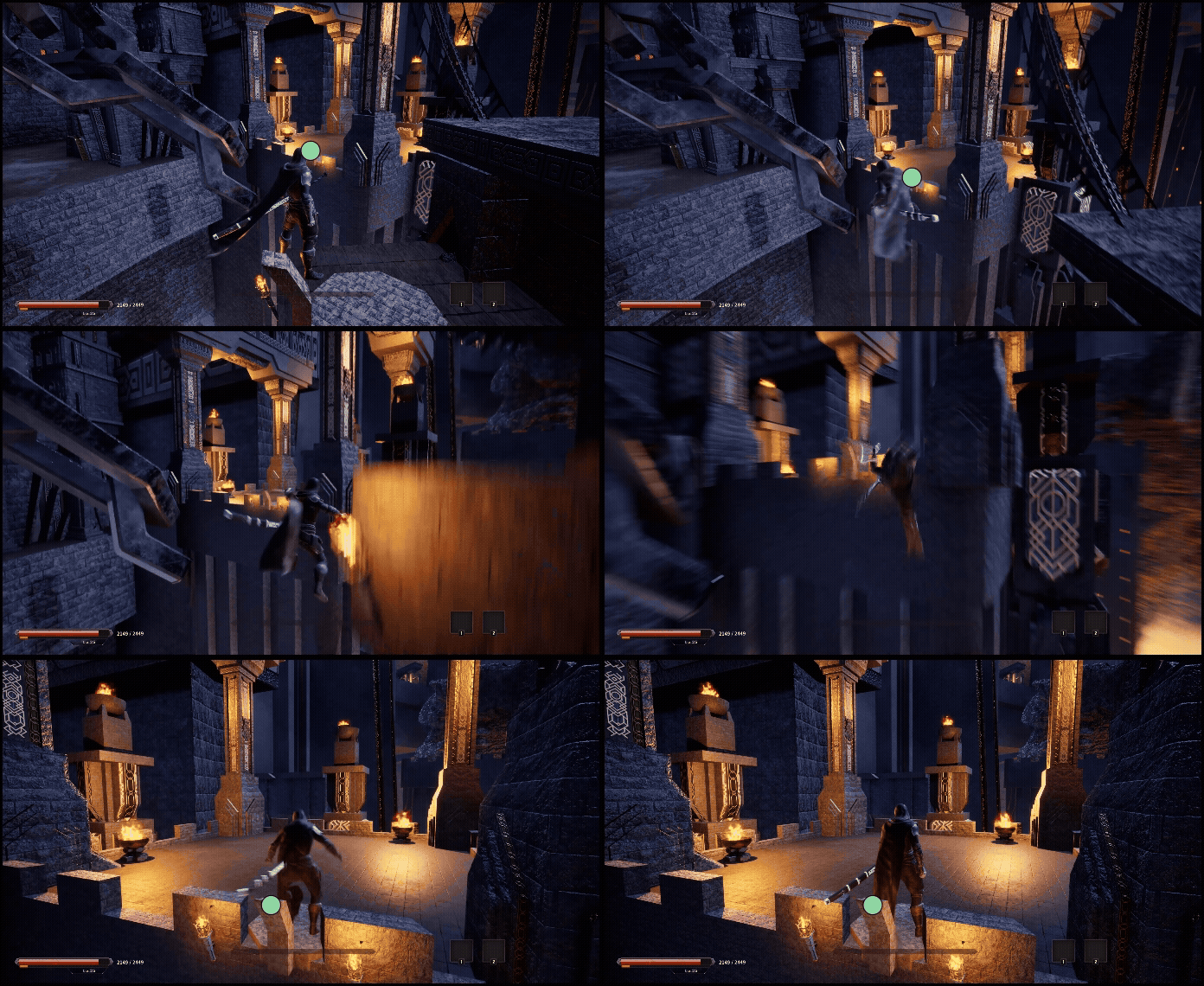
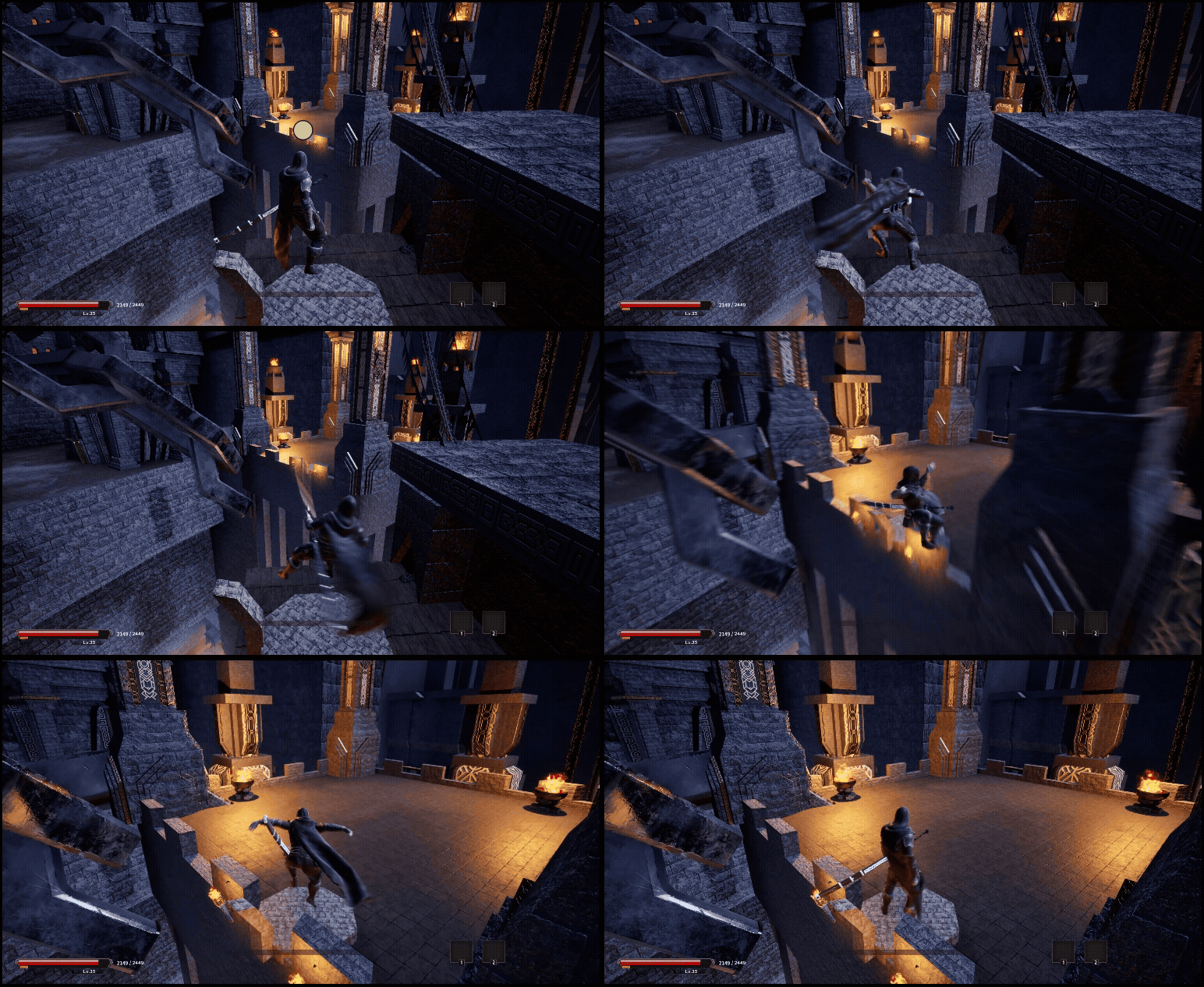
구현내용
지정된 지점으로까지 로프를 달아 그곳으로 날라가는
흔히 부르는 로프액션을 구현하였습니다
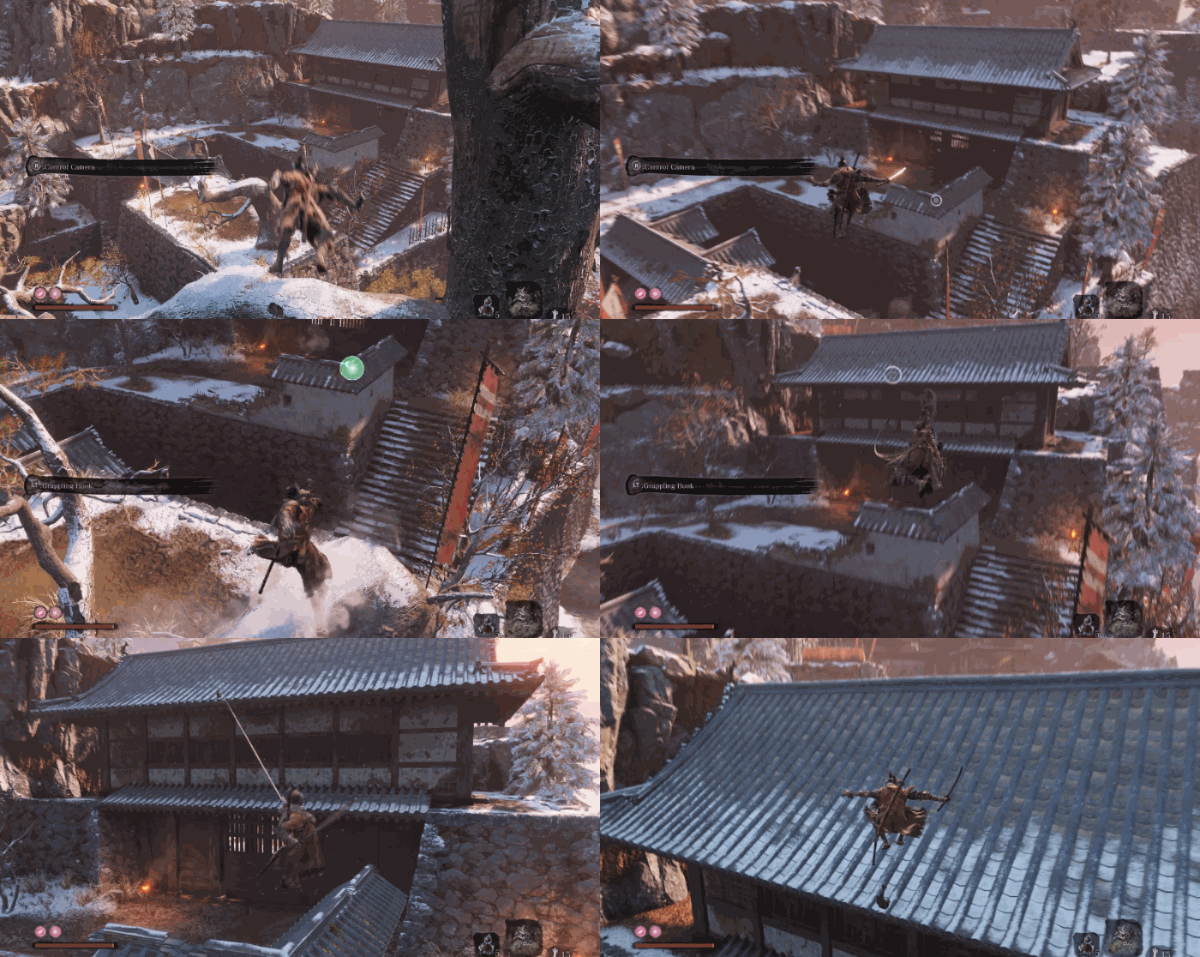
역시 세키로의 그래플링을 오마주하였습니다
참고한 액션은 이와 같습니다
사용된 클래스
| 사용된 클래스 | 사용 목적 |
| GrapplePoint(액터) | 그래플링 훅 이 걸리는 대상 |
| InteractionComponent(액터컴포넌트) | 플레이어의 그래플링 액션을 담당하는 두뇌 |
| GrappleDetectWidget(위젯) | 그래플링 훅이 가능한지 아닌지 시각적으로 보여지는 위젯 |
| MainCharacter(캐릭터) | 그래플링 훅을 사용하는 플레이어 로프를 담당하는 CableComponent가 있는위치 |
구현C++
우선 그래플링 트리거를 탐지할 시스템이 필요했습니다
엔진 설정의 콜리전에서 Object Channels에 GrapplePoints 라고 추가해주었습니다

다음은 그래플링 트리거를 만들었습니다
탐지될 위젯이 보여지는 구간인 sphere Comp
그리고 sphereComp에 붙을 위젯
그리고 착지할 컴포넌트인 LandComp를 하이어라키로 추가하였습니다
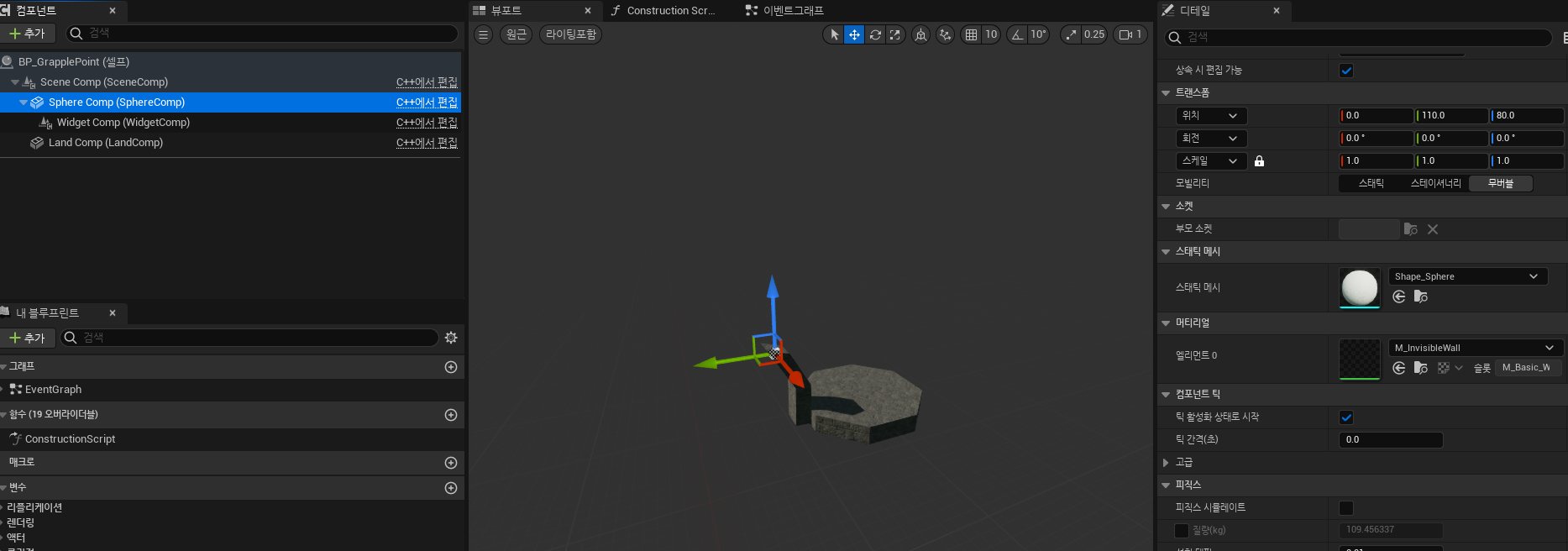
위젯은 Screen Space로 작동합니다
또한 alpha라는 수치로 크기가 10에서 80으로 크기가 변동하게 해주었습니다
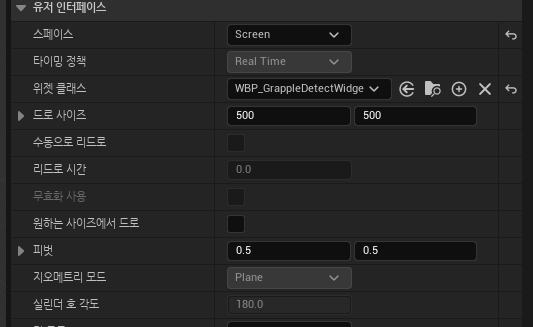
void UGrappleDetectWidget::UpdateByDistance(float alpha)
{
	alpha = FMath::Clamp(alpha, 0.f, 1.f);

	float size = FMath::Lerp(10.f, 80.f, alpha);
	Image_Filling->SetRenderScale(FVector2D(size / 10.f));

	if (alpha >= 1.f)
		Image_Filling->SetColorAndOpacity(FLinearColor(0.35f, 0.85f, 0.45f, 1.f));
	else
		Image_Filling->SetColorAndOpacity(FLinearColor::White);
}
해당 그래플링포인트 액터에서 착지할 위치를 외부로 보내줄 Getter 함수를 정의해주었습니다
FVector AGrapplePoint::GetLandCompLocation() const
{
	if (!sphereComp)
		return FVector::ZeroVector;

	FVector localOffset(0.f, -100.f, 20.f);
	return sphereComp->GetComponentTransform().TransformPosition(localOffset);
}
InteractionComponent내에서 이제 해당 액터를 감지하기위해
동적배열 클래스를 사용하여 Grapple에 걸릴 수 있는 오브젝트 타입들을 배열로 저장해줍니다
그리고 벽 뒤 인지 아닌지 체크해서 플레이어 기준 해당 위치가 벽 뒤에 있다면 무시하도록 해주었습니다
UPROPERTY(EditAnywhere, Category="Grapple")
TArray<TEnumAsByte<EObjectTypeQuery>> grapplePoints;
//해당 함수는 InteractionComponent내의 TickComponent내에서 호출됨
void UUInteractionComponent::CheckForGrapplePoints()
{
	FVector start = mainChar->GetActorLocation();

	for (TActorIterator<AGrapplePoint> it(GetWorld()); it; ++it)
		it->Deactivate();


	TArray<FHitResult> hits;
	bool bHit = UKismetSystemLibrary::SphereTraceMultiForObjects(GetWorld(),start,start + mainChar->GetActorForwardVector() * grappleTraceDistance,grappleTraceRadius,
		grapplePoints,false,TArray<AActor*>(),EDrawDebugTrace::None,hits,true);

	if (!bHit)
		return;

	APlayerController* pc = Cast<APlayerController>(mainChar->GetController());
	if (!pc)
		return;

	int32 viewportX, viewportY;
	pc->GetViewportSize(viewportX, viewportY);
	FVector2D ScreenCenter(viewportX / 2.f, viewportY / 2.f);

	closestGP = nullptr;
	float closestScreenDist = FLT_MAX;
	closestAlpha = 0.f;
	float closestDistance = 0.f;

	for (const FHitResult& hit : hits)
	{
		gp = Cast<AGrapplePoint>(hit.GetActor());
		FVector landLoc = gp->GetLandCompLocation();

		if (!gp)
			continue;

		grabDist = FVector::Dist(start, landLoc);
		if (grabDist > grappleTraceDistance)
			continue;

		// 벽 체크
		FHitResult blockHit;
		FCollisionQueryParams params;
		params.AddIgnoredActor(mainChar);
		params.AddIgnoredActor(gp);
		params.AddIgnoredComponent(mainChar->swordSheathMeshComp);

		TArray<AActor*> childActors;
		mainChar->GetAttachedActors(childActors);
		for (AActor* child : childActors)
			if (child) params.AddIgnoredActor(child);

		bool bHitLine = GetWorld()->LineTraceSingleByChannel(blockHit, start, landLoc, ECC_Visibility, params);
		if (bHitLine && blockHit.GetActor() != gp)
			continue;

		// 월드 -> 화면 좌표
		FVector2D screenPos;
		bool bOnScreen = UGameplayStatics::ProjectWorldToScreen(pc, landLoc, screenPos);
		if (!bOnScreen) continue;

		float screenDist = FVector2D::Distance(ScreenCenter, screenPos);

		if (screenDist < closestScreenDist)
		{
			closestScreenDist = screenDist;
			closestGP = gp;
			closestDistance = grabDist;
			closestAlpha = FMath::Clamp((grappleTraceDistance - grabDist) / (grappleTraceDistance - grapplePossibleDistance), 0.f, 1.f);
		}


	}

	if (closestGP)
	{
		if (!closestGP->grappleWidget->bIsGrappling)
			closestGP->Activate(closestDistance, closestAlpha);
	}
}
그리고 플레이어가 사용하고있는 InteractionComponent내의 Detail창에서 Grapple Point 배열을 추가하고
이전에 만든 오브젝트 채널 GrapplePoints를 추가하였습니다

그러면이제 InteractionComponent내에서 해당 GrapplePoints 트레이스채널을 가지고있는 오브젝트는 감지하게됩니다
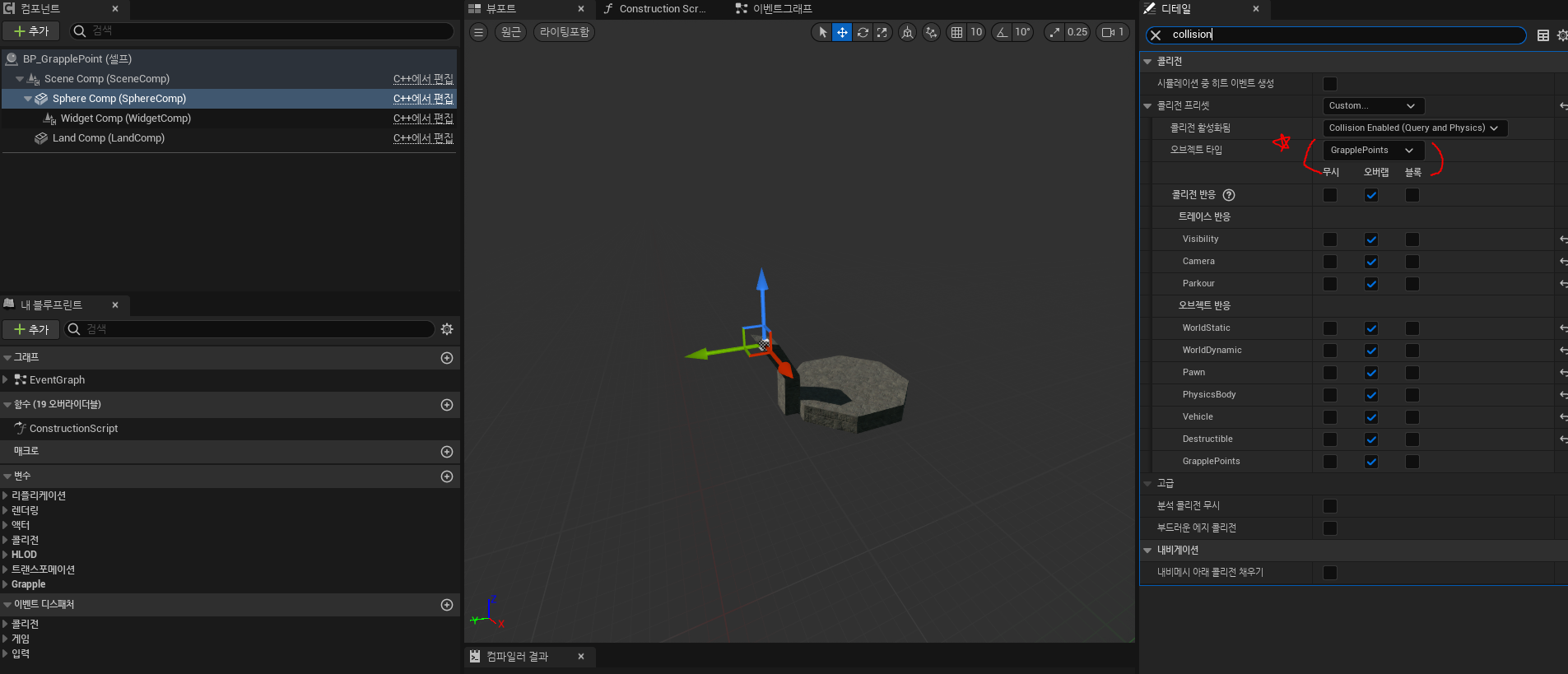
그래플링 훅이 감지될 구간의 콜리전 세팅내의 오브젝트 타입을 GrapplePoints로 변경해줍니다
이렇게하면 해당 위치를 감지할수 있게 됩니다
그래플링에서 플레이어의 방향을 조절하고 공중과 바닥에서 몽타쥬를 분기시키는 함수가 필요했습니다
공중에서 실행되는 애니메이션과 바닥에서 실행되는 애니메이션이 동일하면 이상하니깐 말이죠
또한 그래플링훅으로 해당 위치로 플레이어가 회전해야하는데
SetActorRotation으로 회전시킨다면 확 돌아가버리니 어색합니다
그래서 역시 모션워핑을 채용하였습니다
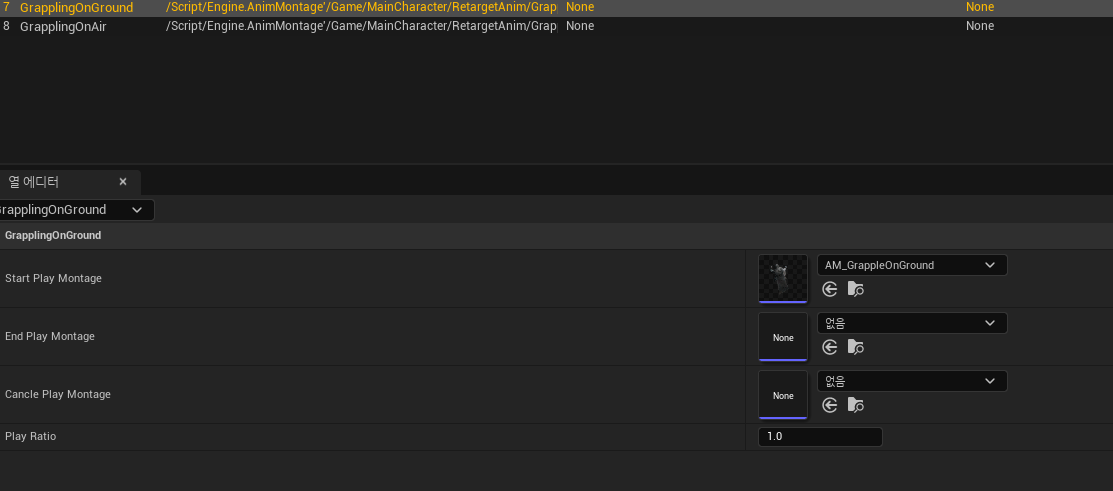
인터렉션을 모션을 담당하는 데이터테이블에 모션을 추가했습니다.
하나는 공중에서 실행되는 액션이고, 다른 하나는 바닥에서 실행되는 액션입니다
void UUInteractionComponent::Grappling()
{
	if (!closestGP || !closestGP->grappleWidget)
		return;


	FName rowNameToUse = mainChar->bIsFalling ? "GrapplingOnAir" : "GrapplingOnGround";
	const FInteractionDataRow* row = GetInteractionData(rowNameToUse);
	if (!row)
		return;

	if (closestAlpha >= 1.f)
	{
		UAnimInstance* animInst = ownerCharacter->GetMesh()->GetAnimInstance();
		if (animInst->Montage_IsPlaying(row->startPlayMontage))
			return;
		closestGP->grappleWidget->ActiveGrapple();
		useGP = closestGP;

		FVector targetLoc = useGP->sphereComp->GetComponentLocation();
		FVector charLoc = ownerCharacter->GetActorLocation();

		FVector flatDir = targetLoc - charLoc;
		flatDir.Z = 0.f;

		FRotator targetRot = flatDir.Rotation();

		motionWarpComp->AddOrUpdateWarpTargetFromLocationAndRotation(
			FName("GrappleTarget"),targetLoc,targetRot);
		UAnimMontage* montageToPlay = row->startPlayMontage;
		float playRate = row->playRatio;

		FOnMontageEnded montageEndDel;
		montageEndDel.BindUObject(this, &UUInteractionComponent::OnGrapplingMontageEnded);

		ownerCharacter->GetMesh()->GetAnimInstance()->Montage_Play(montageToPlay, playRate);
		ownerCharacter->GetMesh()->GetAnimInstance()->Montage_SetEndDelegate(montageEndDel, montageToPlay);

		mainChar->LockAction("Jump", true);
		mainChar->LockAction("Attack", true);
		mainChar->LockAction("Draw", true);

	}

}
EndDelegate로 위젯의 표시도 잠시 숨겨줍니다
void UUInteractionComponent::OnGrapplingMontageEnded(UAnimMontage* montage, bool bInterrupted)
{
	useGP->grappleWidget->bIsGrappling = false;
}
이제 노티파이에서 실제로 호출될 해당 위치로 날라가는 함수가 필요했습니다
해당 함수에서 실행될 내용은 이와같습니다
1. 플레이어의 액션을 즉시 멈출것
2. 플레이어의 GravityScale을 0으로 변경할 것
3. Falling으로 변경할 것
4. 플레이어가 해당 위치로 날라간다 라는 좌표를 지정할 것
플레이어의 애님인스턴스에서 움직임을 시작할때 GrapplingMoveStart함수가 호출되며
움직임을 멈출때 GrapplingMoveEnd가 노티파이로 호출됩니다
void UUInteractionComponent::GrapplingMoveStart()
{
	bUseGPCollisionSet(false);

	grappleStartLoc = mainChar->GetActorLocation();
	grappleTargetLoc = useGP->GetLandCompLocation();

	float gpDist = FVector::Dist(grappleStartLoc, grappleTargetLoc);
	grappleMoveDuration = gpDist / grappleBaseSpeed;

	grappleMoveDuration = FMath::Clamp(grappleMoveDuration, grappleMinDuration, grappleMaxDuration);
	grappleElapsedTime = 0.f;

	mainChar->GetCharacterMovement()->StopMovementImmediately();
	mainChar->GetCharacterMovement()->GravityScale = 0.f;
	mainChar->GetCharacterMovement()->SetMovementMode(MOVE_Falling);

	bIsGrapplingMove = true;

	if (APlayerController* pc = Cast<APlayerController>(mainChar->GetController()))
	{
		pc->SetIgnoreMoveInput(false);
		pc->SetIgnoreLookInput(false);
	}

}

void UUInteractionComponent::GrapplingMoveEnd()
{
	bUseGPCollisionSet(true);
	bIsGrapplingMove = false;

	mainChar->GetCharacterMovement()->GravityScale = 1.f;

	mainChar->GetCharacterMovement()->SetMovementMode(MOVE_Walking);
	mainChar->GetCharacterMovement()->Velocity = FVector::ZeroVector;
	bUseGPCollisionSet(true);
	bIsGrappling = false;
	mainChar->EndGrapple();
	if (APlayerController* pc = Cast<APlayerController>(mainChar->GetController()))
	{
		pc->SetIgnoreMoveInput(false);
		pc->SetIgnoreLookInput(false);
	}
	gp->grappleWidget->ShowWidget();

	mainChar->LockAction("Jump", false);
	mainChar->LockAction("Attack", false);
	mainChar->LockAction("Draw", false);

}
이제 실제로 움직임을 구현하였습니다
여기서 고민을 많이했습니다
Tick DeltaTime을 누적시켜서 움직이는 방식을 사용하여 정확하게 날라가는 방식을 채용했는데
그냥 시간을 누적하니깐 모션이 너무 Linear하여서 날라간다 라는 느낌을 줄수 없었습니다
그래서 CurveFloat을 사용하여 움직임을 조금더 역동적으로 변경해주었습니다
UPROPERTY(EditAnywhere, Category="Grapple")
UCurveFloat* grappleMoveCurve;
움직임에 사용된 커브는 이와 같습니다
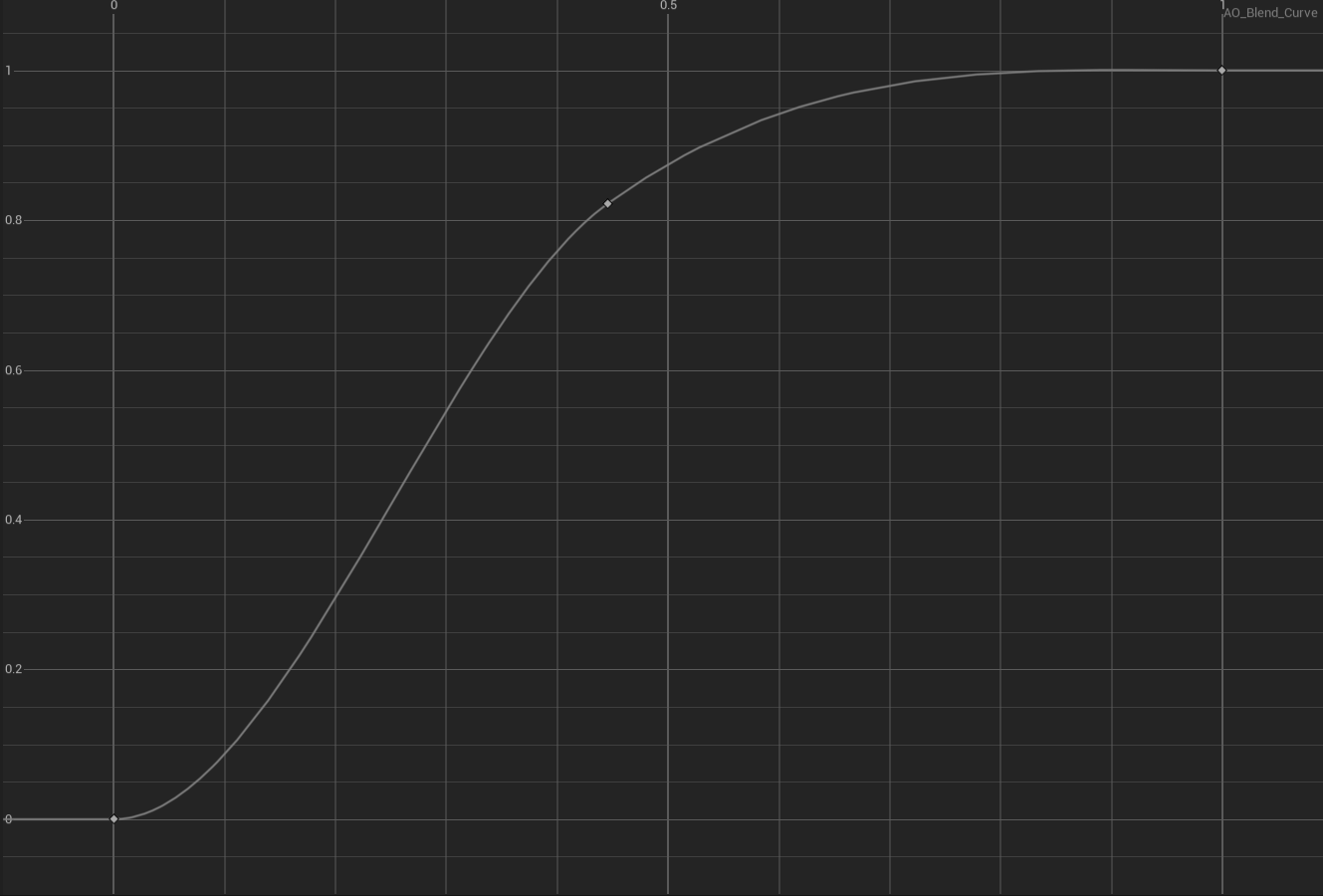
커브를 UPROPERTY에 할당하여사용
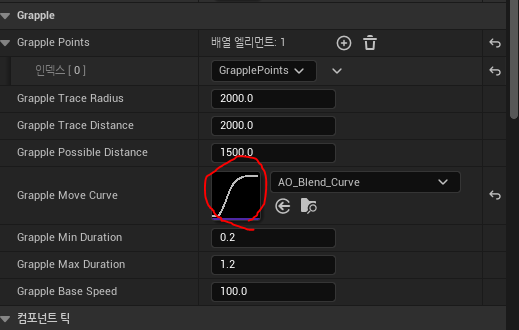
TickComponent에서 움직임을 구현
bool bIsGrapplingMove = false;  //이동중인지 체크
float grappleElapsedTime; //누적시간
float grappleMoveDuration; // 총 이동 시간
FVector grappleStartLoc; // 시작 위치
FVector grappleTargetLoc; //목표 위치
if (bIsGrapplingMove)
{
grappleElapsedTime += DeltaTime;
float alpha = grappleElapsedTime / grappleMoveDuration;
alpha = FMath::Clamp(alpha, 0.f, 1.f);
float curveAlpha = grappleMoveCurve ? grappleMoveCurve->GetFloatValue(alpha) : alpha;
FVector newLoc = FMath::Lerp(grappleStartLoc, grappleTargetLoc, curveAlpha);
mainChar->SetActorLocation(newLoc);
UCableComponent* cable = mainChar->cableComp;
FVector startLoc = cable->GetComponentLocation();
FVector endLoc = useGP->sphereComp->GetComponentLocation();
cable->CableLength = FVector::Dist(startLoc, endLoc);
if (alpha >= 1.f)
{
GrapplingMoveEnd();
mainChar->SetActorLocation(grappleTargetLoc);
}
}
위치로 날라가는것을 구현했으니 이제 손에서 발사될 로프를 구현만 남았습니다
필자는 CableComponent를 사용하는 방식을 채용하였습니다
C++에서 CableComponent를 사용할려면 Build.Cs 파일의 수정이 필수불가결합니다
build.cs의
PublicDependencyModuleNames.AddRange 끝에 이와같이 추가합니다
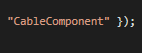
build.cs에 추가한뒤 #include "CableComponent.h" 를 추가하면 사용할 수 있습니다
케이블컴포넌트를 생성자에서 hand_l에 달아줍니다
UPROPERTY(EditAnywhere, Category = "Grapple")
class UCableComponent* cableComp;

cableComp = CreateDefaultSubobject<UCableComponent>(TEXT("CableComponent"));
cableComp->SetupAttachment(GetMesh(), FName("hand_l"));
케이블 컴포넌트의 일부 사항을 디테일창에서 조정
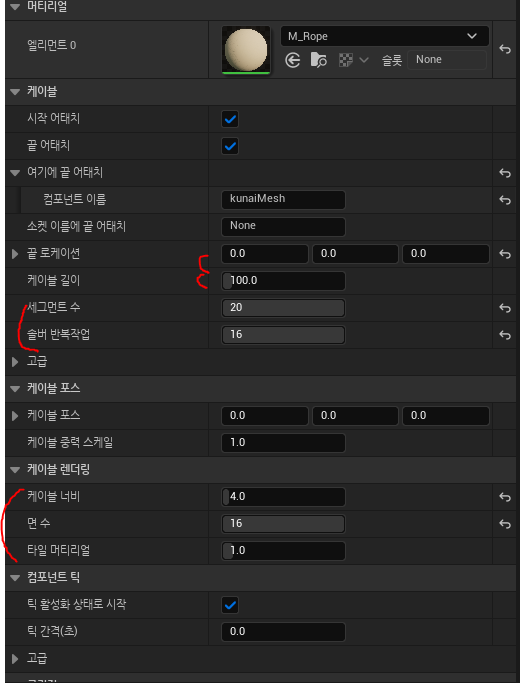
이제 케이블 길이를 늘어나고 줄어들게 만들어줍니다
현재 지정된 포인트로부터의 위치를 구하여 그 위치까지 CableLength를 변경해줍니다
이제 노티파이에서 줄을 사용해야할때 해당 함수를 호출시켜줍니다
void UUInteractionComponent::UpdateCableToGrapplePoint()
{
	UCableComponent* cable = mainChar->cableComp;
	cable->SetAttachEndToComponent(useGP->sphereComp, NAME_None);
	cable->bAttachEnd = true;

	FVector startLocation = cable->GetComponentLocation();
	FVector endLocation = useGP->sphereComp->GetComponentLocation();

	float ropeLength = FVector::Dist(startLocation, endLocation);
	cable->CableLength = ropeLength;
	cable->SetSimulatePhysics(true);

}
노티파이에서 이런식으로 호출해주시면됩니다
void UMainCharacterAnimInstance::AnimNotify_RopeOn()
{
	mainCharacter->interactionComp->GrappleVissible(true);
	mainCharacter->interactionComp->UpdateCableToGrapplePoint();
}

void UMainCharacterAnimInstance::AnimNotify_RopeOff()
{
	mainCharacter->interactionComp->GrappleVissible(false);
}
완성된 몽타쥬는 이와 같습니다
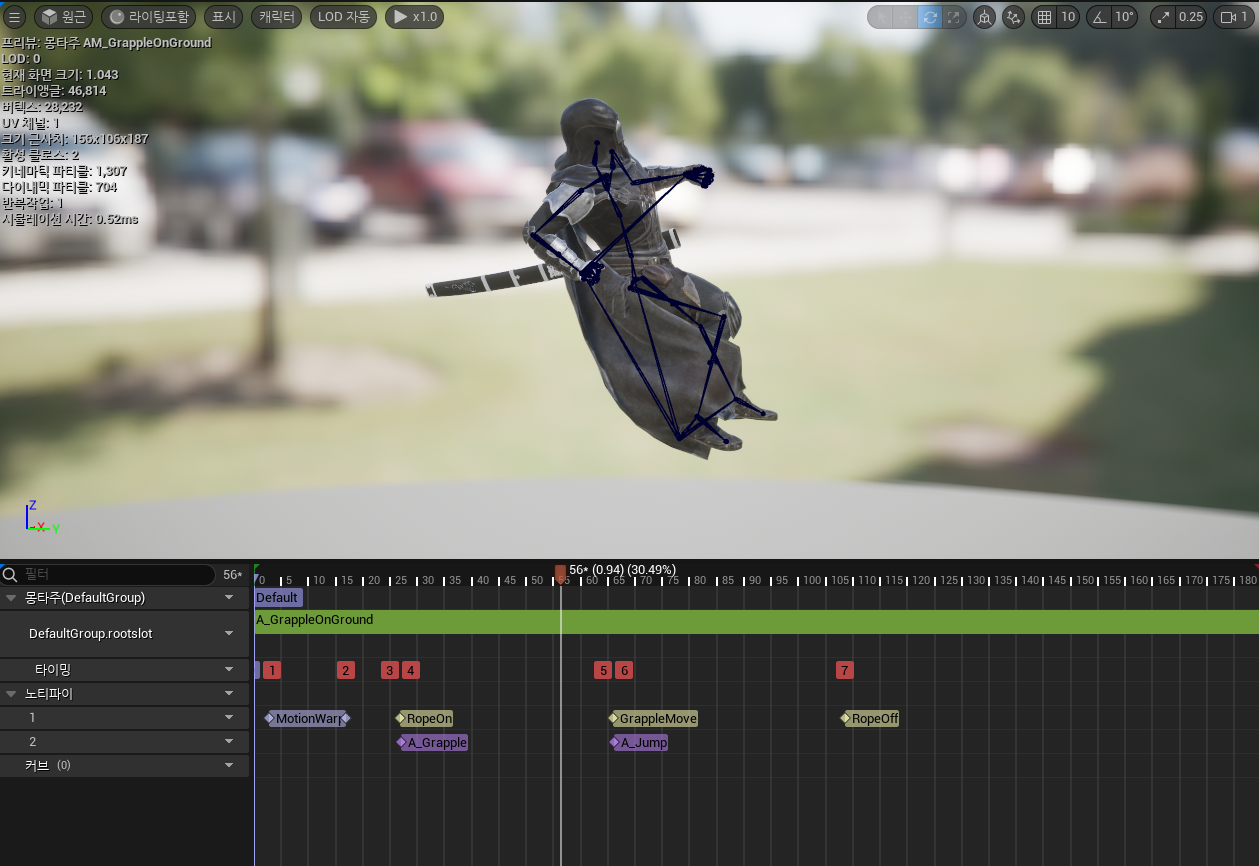
결과
플레이어의 거리에 비례하여 위젯이 변경되고 그래플링 훅이 가능한 거리가 충족되면 초록색으로 변경됩니다
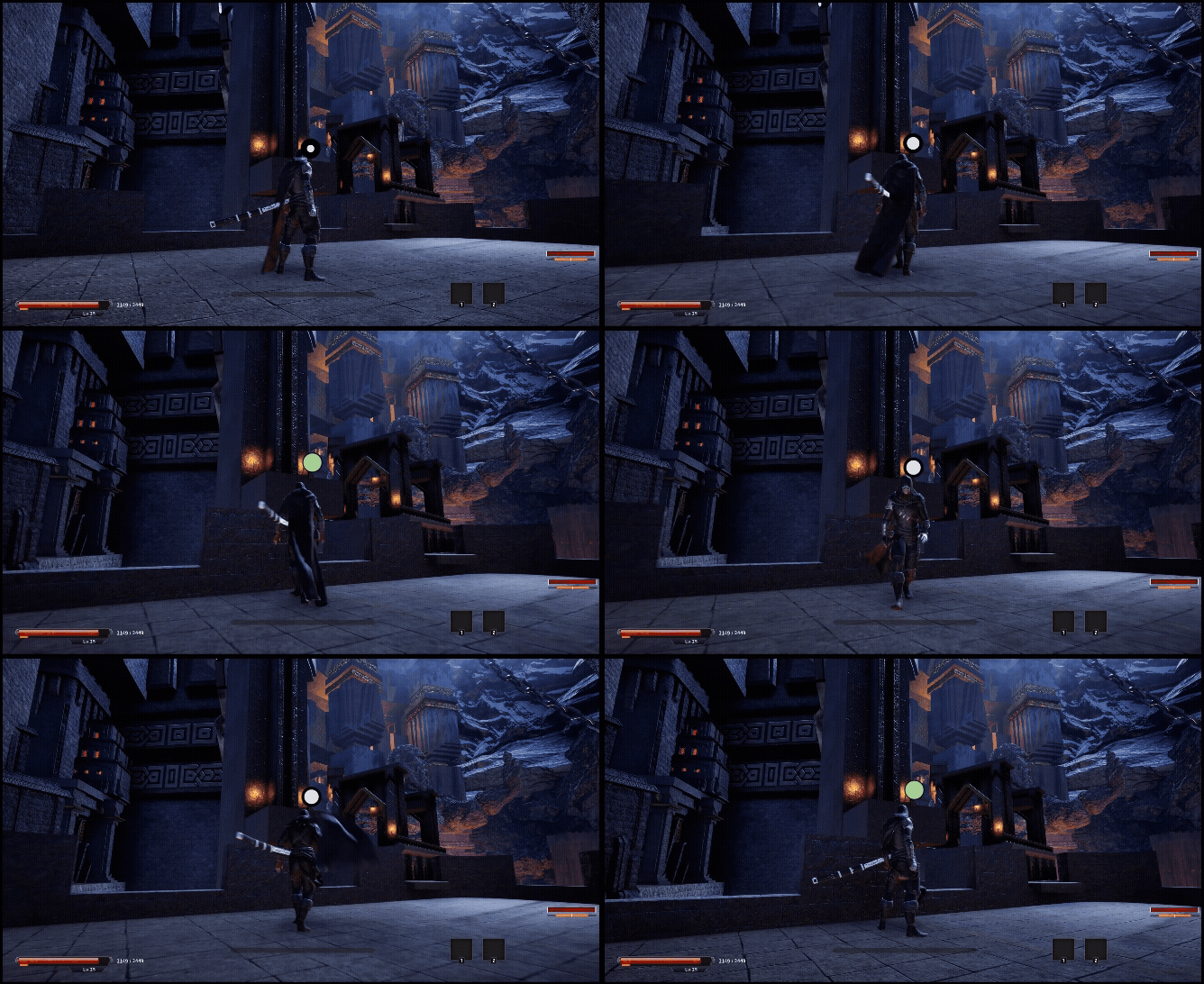
화면을 회전하여 원하는 지점을 선택할 수 있습니다.
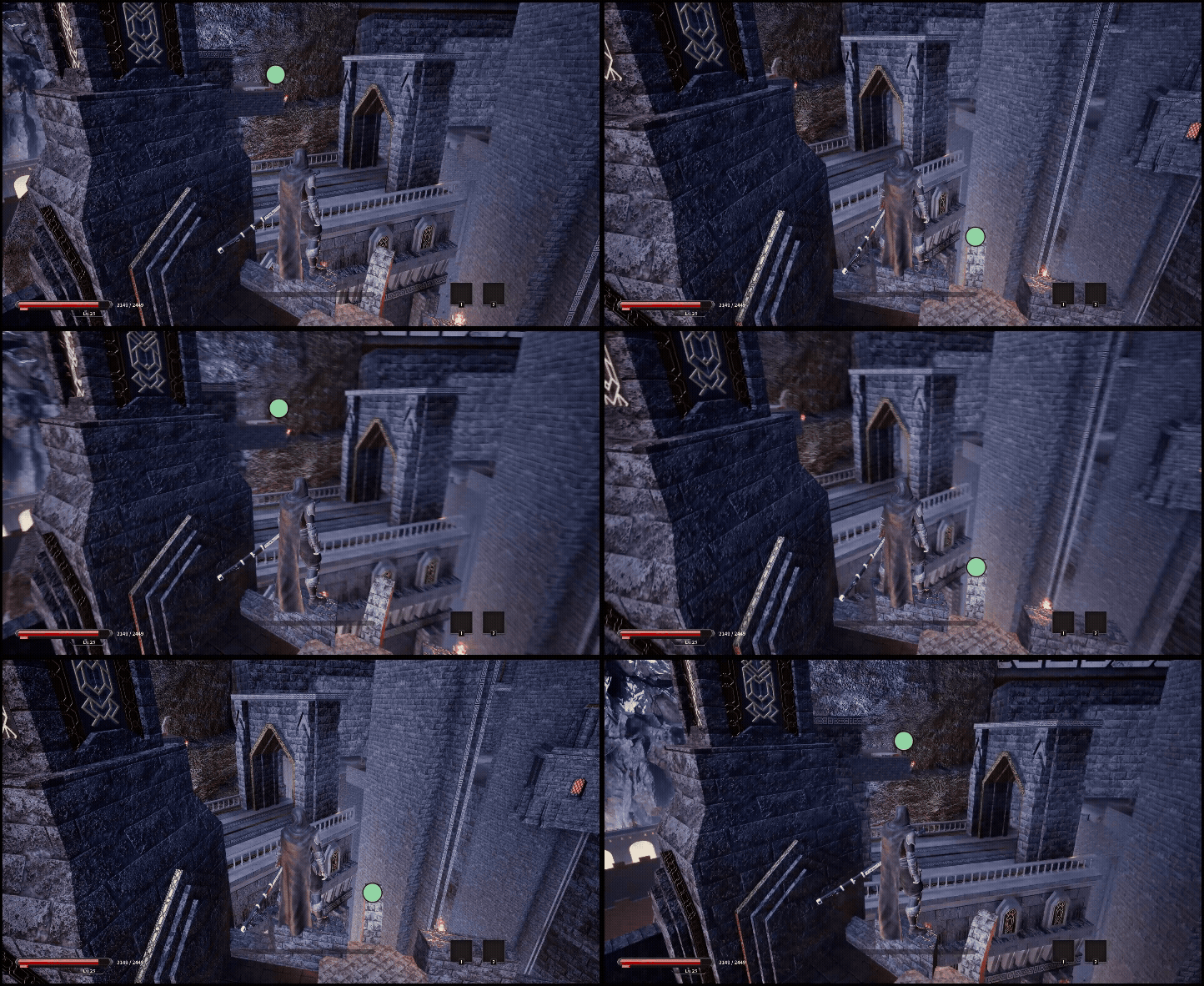
해당 포인트에 F키를 눌러 그래플링 훅을 실행할수 있습니다
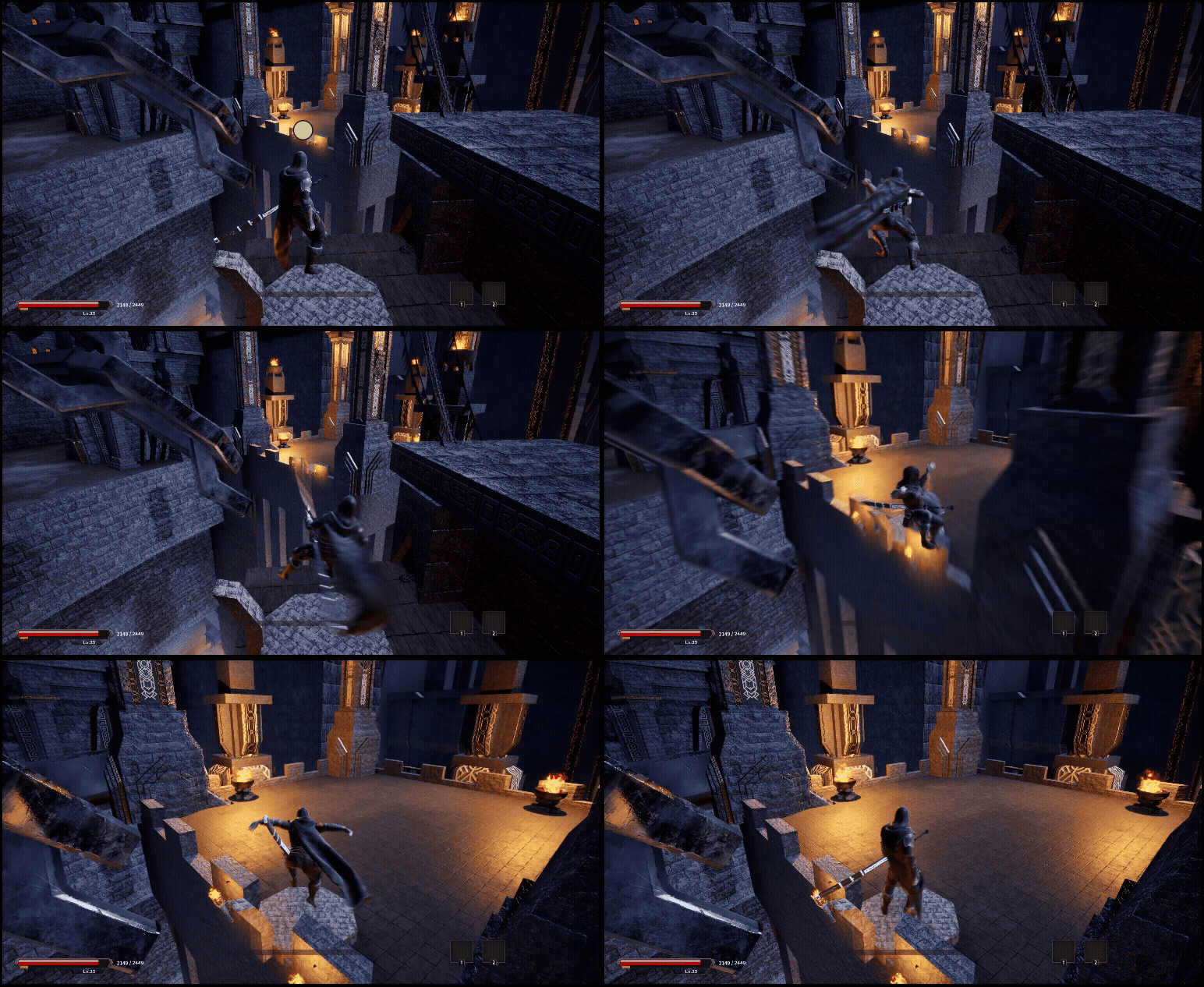
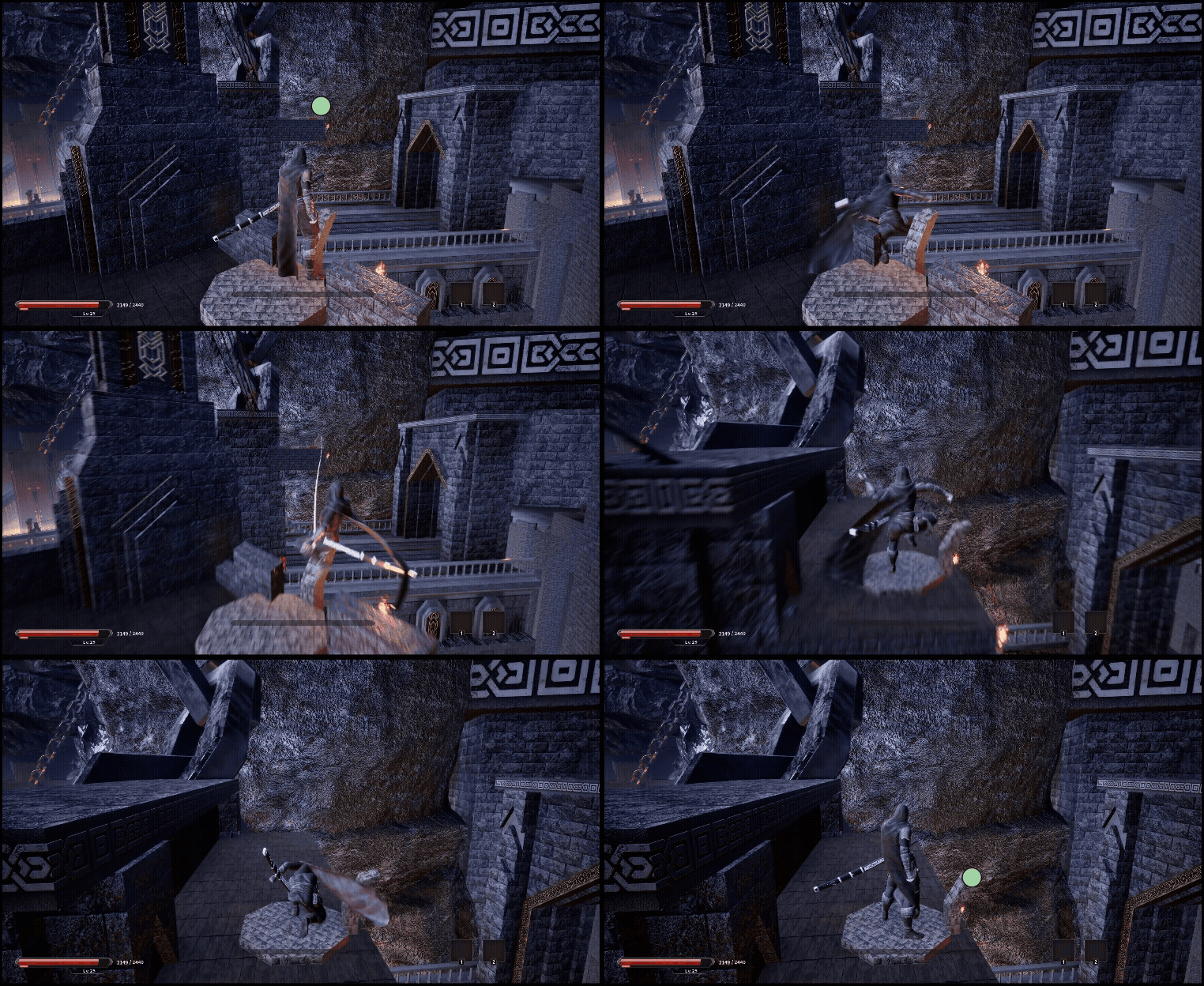
공중에서도 자유롭게 그래플링 훅을 사용할 수 있습니다
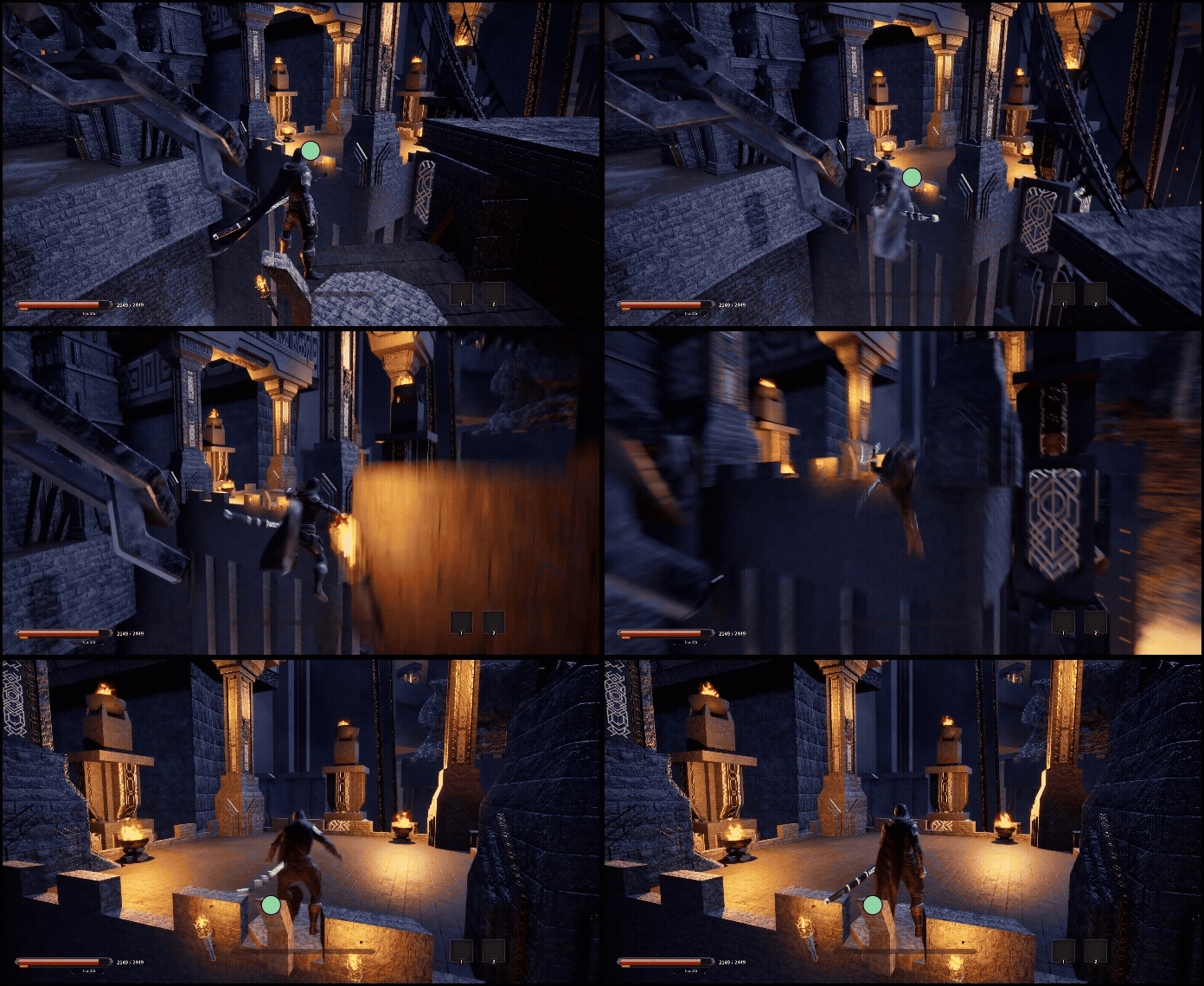
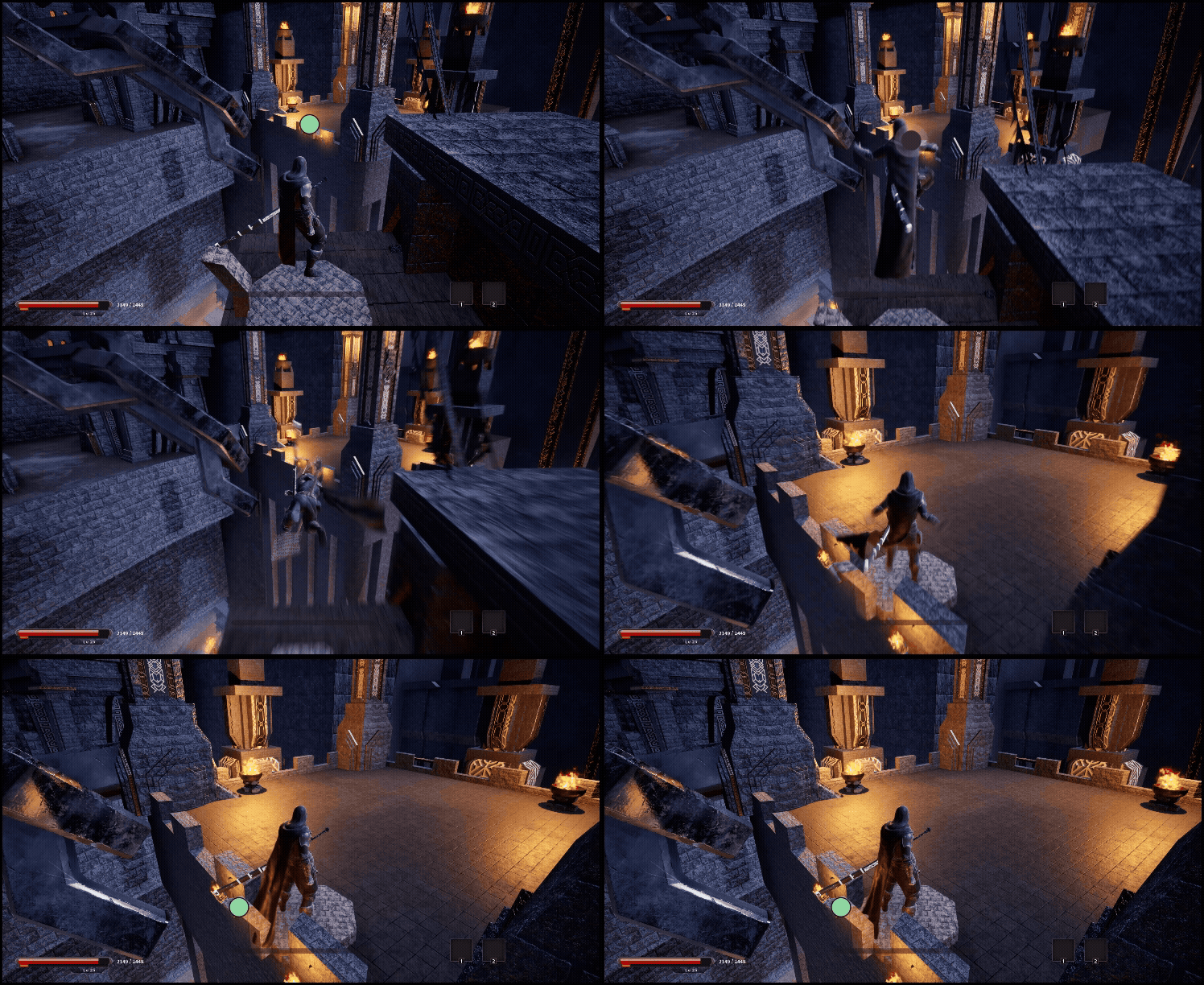
영상
'Unreal 프로젝트 다이어리 > 두번째 프로젝트' 카테고리의 다른 글
| Unreal - 적 공격 간파하기 (2) | 2026.01.16 |
|---|---|
| Unreal - 가드 (Guard) / 체간 (Posture) 시스템 (4) | 2026.01.12 |
| Unreal - 처형( Execution ) (0) | 2026.01.05 |
| Unreal - 회피(Dodge) (0) | 2026.01.03 |
| Unreal - 스킬창 & 연동 (0) | 2026.01.01 |